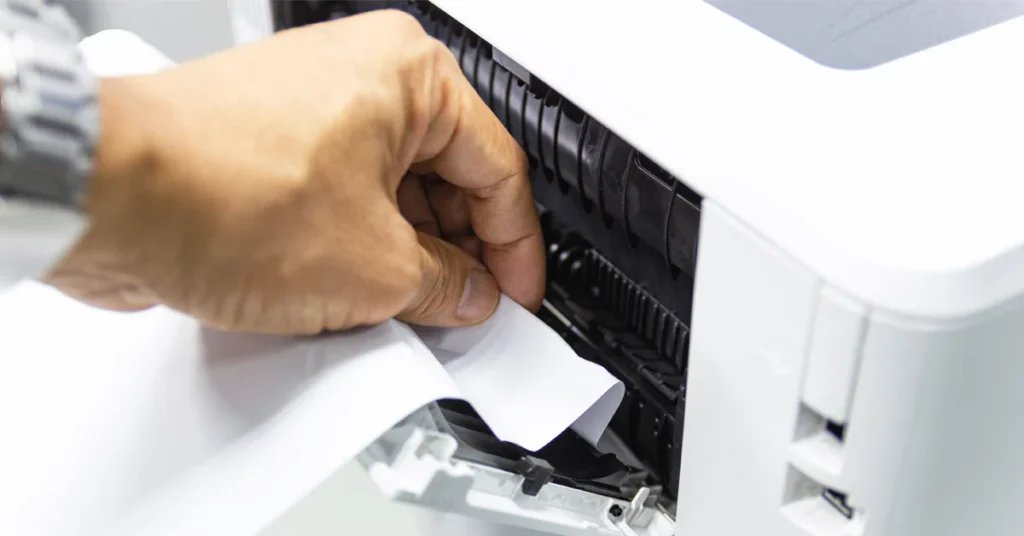
🖨️ How to Clear a Paper Jam in Your Printer (Simple Step-by-Step Guide)
Few things are more frustrating than a paper jam — especially when you’re in the middle of printing something urgent. Fortunately, most paper jams are easy to resolve once you know where to look and what to do. This quick guide will show you how to clear the jam safely and get your printer running again in no time.
⚙️ What Causes Paper Jams in Printers?
Paper jams can happen for several reasons, and understanding the cause helps you prevent them in the future. Common causes include:
-
Worn-out rollers that don’t pull paper through smoothly
-
Incorrect paper type (too thick, too thin, or not designed for your printer)
-
Uneven paper loading or overfilled trays
-
Open or misaligned trays and doors
-
Internal damage or debris inside the printer
If your printer jams frequently, it might be time to have it serviced or consider replacing worn parts.
🧰 Step-by-Step Guide: How to Clear a Paper Jam
1. Turn Off and Unplug the Printer
Before doing anything else, power off the printer and unplug it from the outlet. This ensures your safety and prevents accidental internal damage.
2. Remove All Paper from the Tray
Take out any loose paper from the main tray. Check carefully for jammed sheets inside. If you see paper stuck, pull it out slowly and evenly to avoid tearing it.
3. Inspect the Inside of the Printer
Open the access panel (front or back, depending on the model).
-
Look for small scraps of paper or sheets caught inside.
-
Rotate the rollers gently to make sure they move freely.
-
If the rollers are dusty, wipe them with a slightly damp, lint-free cloth and let them dry completely before using the printer again.
4. Reload the Paper Properly
After clearing the jam, place the paper stack back into the tray.
-
Make sure the pages are flat, dry, and neatly aligned.
-
Adjust the side guides so they lightly touch the paper edges.
-
Avoid overloading the tray — leave a small gap below the fill line.
5. Plug In and Restart the Printer
Close all covers or trays, plug the printer back in, and power it on.
Try printing a test page to confirm everything is working properly.
💡 Tips to Prevent Future Paper Jams
-
Fan or loosen the paper stack before loading
-
Never overfill the paper tray
-
Always use paper recommended for your printer type
-
Refill paper only when the tray is empty
-
Align sheets neatly before printing
-
Keep your printer clean and dust-free
-
Store paper in a cool, dry place to prevent curling
-
Ensure ink or toner cartridges are properly installed
🧠 In Summary
Paper jams are annoying but rarely serious. With a few careful steps — unplugging the printer, removing stuck paper, checking rollers, and reloading correctly — you can clear the jam and prevent it from happening again. Keeping your printer clean and using the right paper will also help ensure smooth, reliable printing every time.